
Everything you need
to write with ease.
A quick start, typing reference, and answers to common questions for Sinhala Writer.
Your first Sinhala sentence
Open the app and follow these simple steps.
Tap “Type in English”
Use your regular keyboard and type the Sinhala sounds in English letters.
Read the result above
The upper “Sinhala” field shows the converted Unicode text as you go.
Use your writing
Tap Copy in the top bar, or choose Share Text from the menu.
For more patterns, explore the reference below.
Find the letters you need.
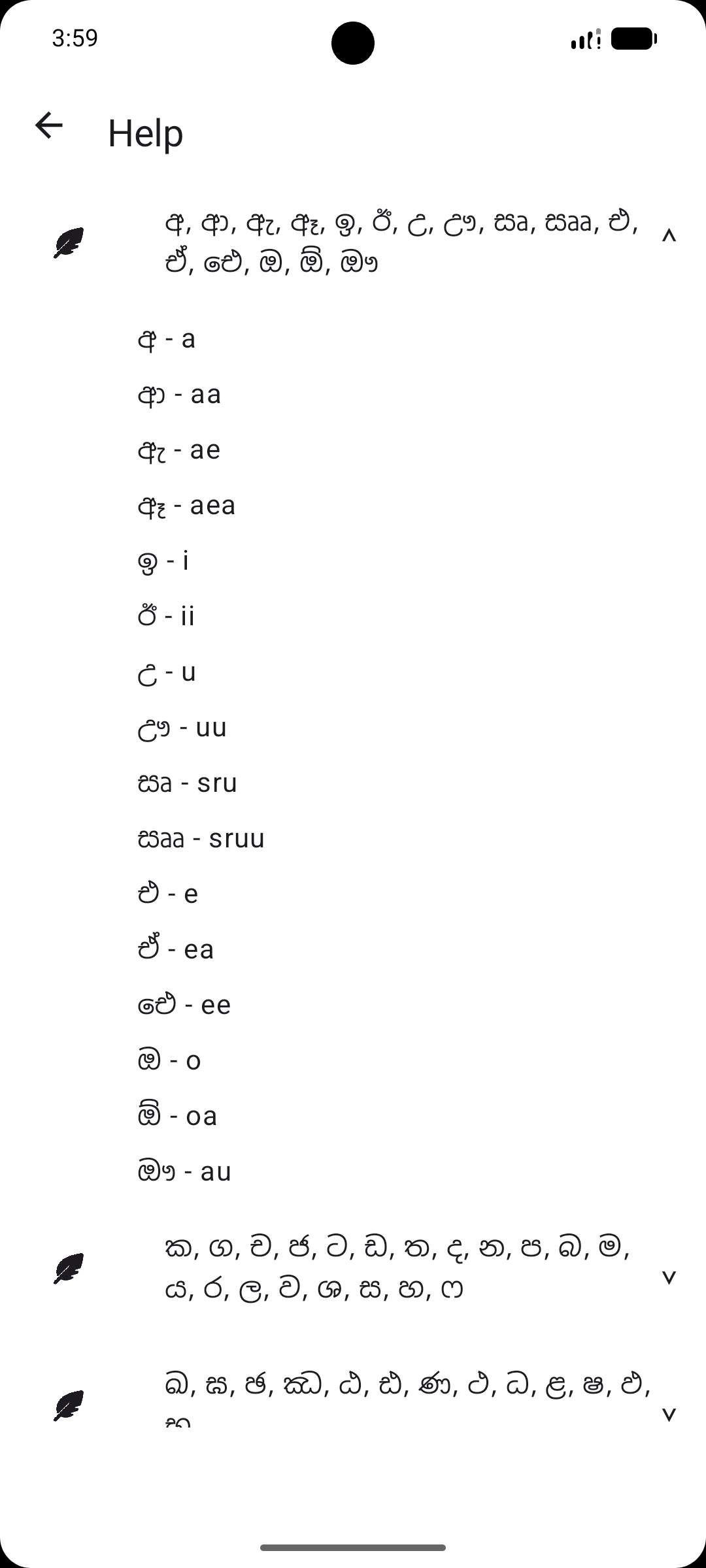
These mappings come from the app’s own Help reference. Uppercase letters matter for some sounds.
VowelsStart here for the core Sinhala vowel sounds.
Common consonantsEveryday consonant sounds and their English-letter forms.
Extended consonantsCapital letters distinguish several related sounds.
Combined consonantsUse these sequences for combined letters.
Vowel forms & special combinationsSee how the spelling changes when sounds follow a consonant.
Word examplesTry these complete words in the app.
Need a hand?
Here are the most useful things to know while using the app.
How do I copy Sinhala text?+
Once text appears in the Sinhala field, tap the Copy icon in the top bar. You can then paste it into another app.
Can I paste text into the app?+
Yes. Tap the Paste icon in the top bar. If you already have a draft, the app lets you clear it and paste or append the clipboard text.
How do I share what I wrote?+
Open the three-dot menu and choose “Share Text” to send the converted Sinhala text through your device’s share options.
What if I want to start again?+
Choose “Clear All” from the three-dot menu and confirm. This clears the current draft.
Does the app support dark mode?+
Yes. Sinhala Writer follows your device’s light or dark appearance.
Where can I find the guide in the app?+
Open the three-dot menu and select “Help” to view the character mappings on your device.
We’re here to help.
Questions, feedback, or an issue with the app? Reach Arvin Apps directly.